Email caps attachments at 20-25 MB.
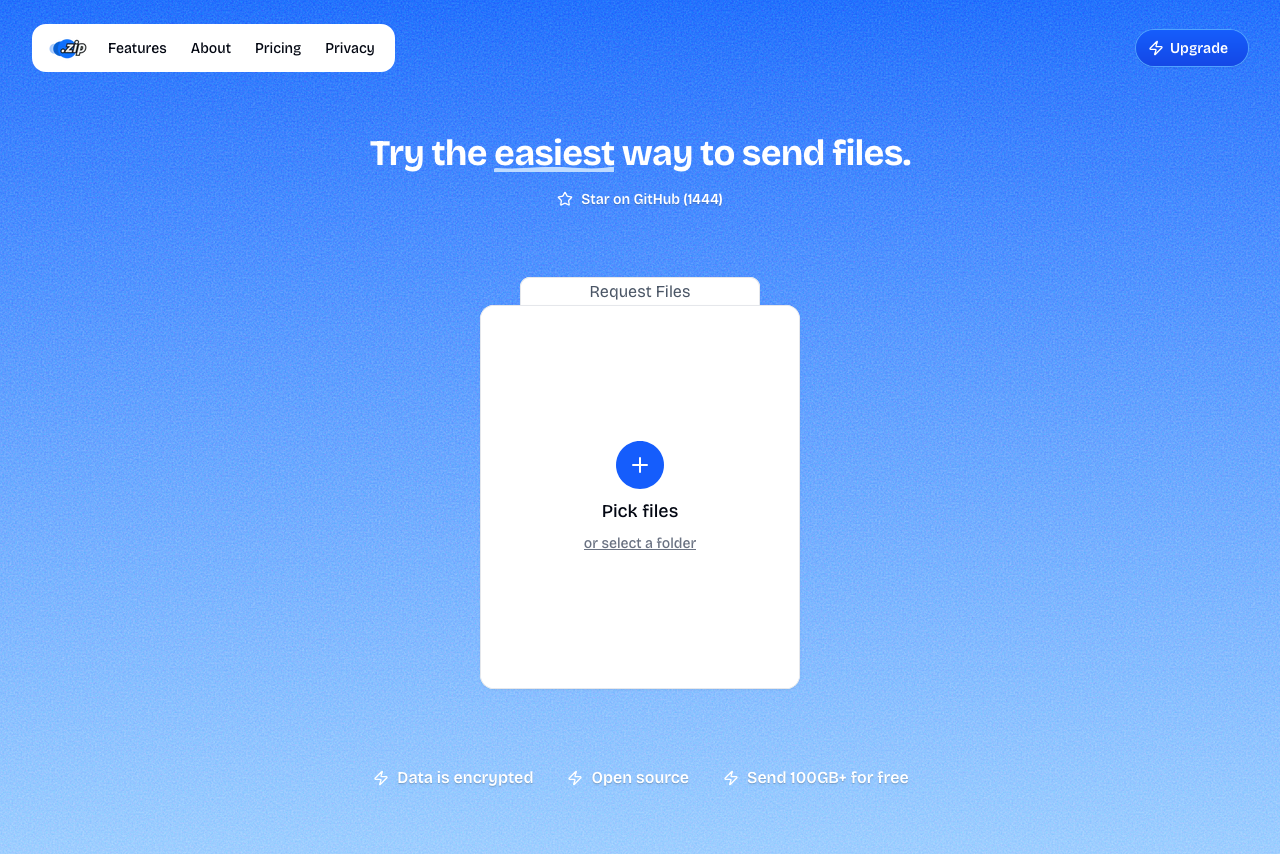
For larger files, share a link instead using Transfer.zip.
Transfer.zip offers a 7-day free trial so you can send files for free.
The Email Attachment Problem
Most email providers limit attachment sizes to 20-25 MB to prevent server overload. But in 2026, a single high-resolution photo can be 10 MB, a short 4K video exceeds 100 MB, and project files routinely reach gigabytes. Here's how to work around these limits.
Email Provider Limits
| Email Provider | Maximum Size | Built-in Cloud Integration |
|---|---|---|
| Gmail | 25 MB | Google Drive (auto-upload) |
| Outlook/Hotmail | 20 MB | OneDrive integration |
| Yahoo Mail | 25 MB | No automatic integration |
| Apple Mail (iCloud) | 20 MB | Mail Drop (up to 5 GB) |
Note: Attachments are encoded when sent, increasing their size by 30-37%. A 20 MB file might become 27 MB when attached, exceeding Gmail's limit.
Method 1: Cloud Storage Links (Best for Existing Users)
If you already use Google Drive, Dropbox, or OneDrive, this is the simplest solution.
Google Drive (15 GB Free)
Upload your file to Google Drive, right-click → Share → set to "Anyone with the link" → copy and paste in your email.
- Files stay accessible indefinitely
- 15 GB free storage
- Recipients can preview without downloading
- Requires Google account to upload
- Uses your storage quota
Gmail auto-integration: When you attach a file over 25 MB in Gmail, it automatically uploads to Drive and inserts a link.
Dropbox (2 GB Free)
Upload to Dropbox, click Share → Create link, and paste in your email.
Add ?dl=1 to the end of the Dropbox link for direct download instead of preview page.
Microsoft OneDrive (5 GB Free)
Upload to OneDrive, right-click → Share → copy link. Outlook automatically suggests OneDrive for large files.
Method 2: File Transfer Services (Best for Large Files)
Purpose-built for sending large files temporarily. No storage quota used, often no account required.
Transfer.zip (Unlimited with P2P)
Transfer.zip offers unlimited file sizes via peer-to-peer streaming (no upload wait), end-to-end encryption, and no account required. Select Quick Transfer, copy the instant link, and paste in your email. Best for files over 50 GB, time-sensitive transfers, or when privacy matters.
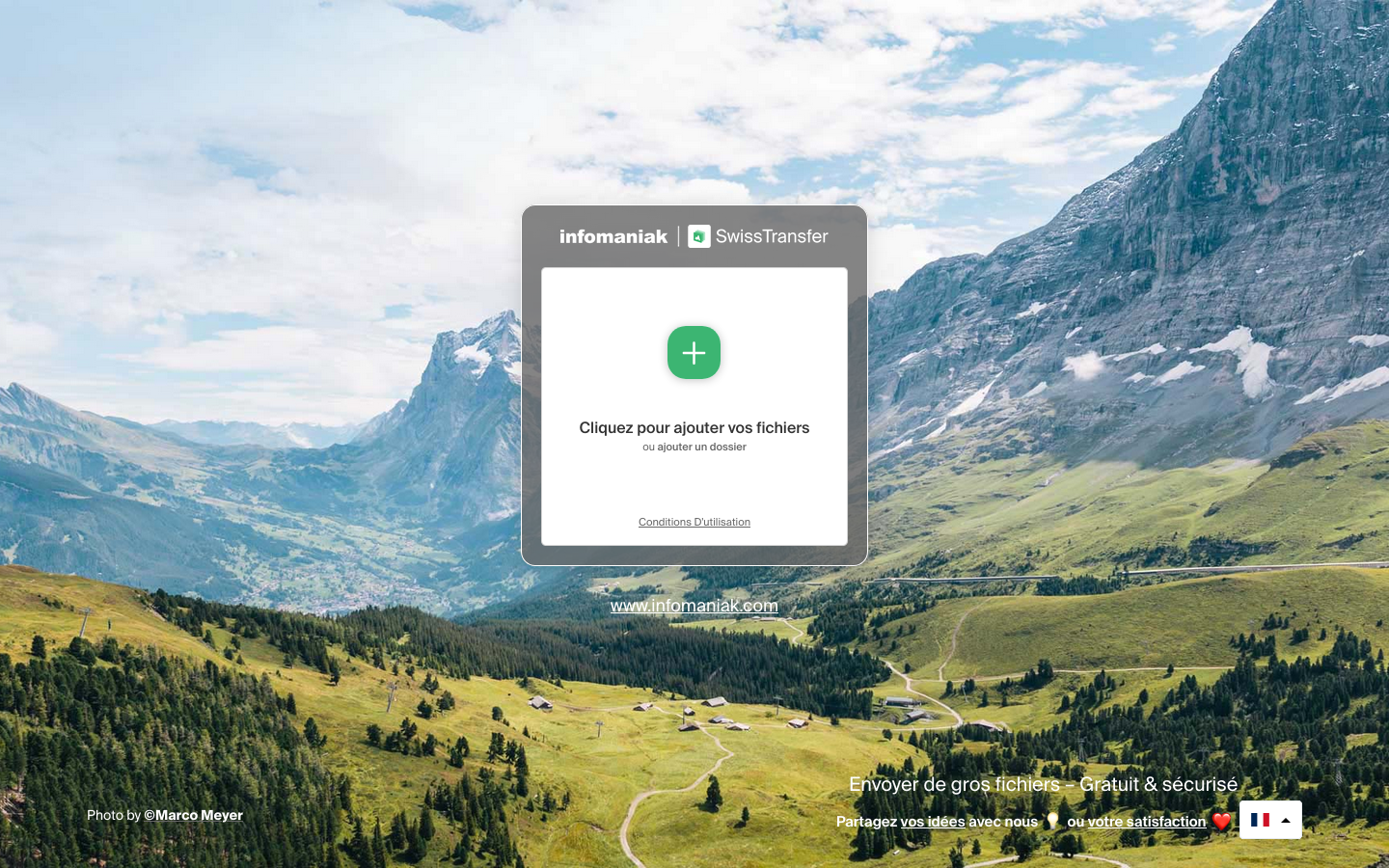
SwissTransfer (Up to 50 GB, Free)
Drag and drop files at SwissTransfer, generate a link or email directly. Files stored for 30 days.
- 50 GB limit
- 30-day retention
- Swiss privacy laws
- No ads
- No account needed
WeTransfer (Up to 3 GB Free)
Add files at WeTransfer, choose email or link transfer, and click Transfer. Files stored for 7 days.
- Super simple interface
- Reliable and fast
- Only 3 GB free
- 3-day retention
- 10 transfers/month limit
Method 3: Compress Files
Compression can sometimes squeeze files under the email limit, especially for documents and uncompressed images.
Windows: Right-click → Send to → Compressed (zipped) folder Mac: Right-click → Compress "[filename]"
For better compression:
Reality check: Compression works great on text files and documents (70-90% reduction), but doesn't help much with videos, JPEGs, PNGs, PDFs, or MP3s that are already compressed.
Method 4: Split Large Files
If your file is too large even after compression, use 7-Zip to split it: right-click → Add to archive → set Split to volumes to 15-20 MB. Send each part separately. Recipients need all parts in the same folder to extract.
Method 5: Email Provider's Built-in Features
Gmail: Automatic Google Drive Upload
When you attach a file over 25 MB, Gmail automatically uploads it to Google Drive and inserts a link. No special steps needed.
Apple Mail: Mail Drop
Allows sending files up to 5 GB through iCloud. Activates automatically when you attach files over 20 MB in Apple Mail app. Links expire after 30 days.
Outlook: OneDrive Integration
Outlook prompts OneDrive upload for large files. Click Upload to OneDrive and share as a link when prompted.
Security Best Practices
For sensitive files:
- Use password protection - Most transfer services offer this. Share password via separate channel (SMS, phone).
- Encrypt before uploading - Use 7-Zip with AES-256 encryption.
- Choose privacy-focused services - Transfer.zip (E2E encrypted), SwissTransfer (Swiss privacy laws).
- Set expiration dates - Don't leave sensitive files accessible indefinitely.
- Avoid public Wi-Fi - Use VPN when uploading sensitive files.
Which Method to Choose?
| Situation | Best Method | Why |
|---|---|---|
| File under 20 MB | Compress then email | Simplest, direct delivery |
| 20-50 MB | Cloud storage link | If you already use it |
| 50 MB - 3 GB | WeTransfer or SwissTransfer | Quick, no account needed |
| 3 GB - 50 GB | SwissTransfer or Transfer.zip | Generous free limits |
| Over 50 GB | Transfer.zip (P2P mode) | Unlimited free tier |
| Sensitive files | Transfer.zip or Encrypt + any service | E2E encryption |
Troubleshooting Common Issues
"Email keeps bouncing back"
- File is too large (encoding adds 30%+). Try compressing or use a file transfer link.
"Recipient can't access the file"
- Check sharing permissions and verify link hasn't expired. Ask recipient to check spam folder.
"Upload is taking forever"
- Check your upload speed (often slower than download). Use wired connection. For instant sharing, use Transfer.zip P2P mode.
"File transfer link expired"
- Re-upload and send new link. Use services with longer retention (SwissTransfer: 30 days) or cloud storage.
Email Etiquette for Large Files
- Give recipients a heads-up - Warn about file size, especially for mobile users.
- Use descriptive filenames -
ProjectProposal_ClientName_Jan2026.pdfnotdocument_final.pdf - Include context - What the file is, why you're sending it, what action you expect.
- Set expectations - "This link expires in 7 days" or "Please download by Friday"
FAQ
What's the largest file I can email? Most providers limit to 20-25 MB. With encoding overhead, aim for 15-18 MB maximum to be safe.
Can I send large files without a cloud account? Yes, use Transfer.zip, SwissTransfer, or WeTransfer - all work without creating an account.
How long do file transfer links last?
- WeTransfer: 7 days (free)
- SwissTransfer: 30 days
- Transfer.zip: Until browser tab closes (Quick Transfer) or up to 1 year (paid)
- Cloud storage: Until you delete them
Why does my 20 MB file fail to attach? Email encoding increases file size by 30-37%. A 20 MB file becomes ~27 MB when attached, exceeding Gmail's 25 MB limit.
What's the fastest way to send large files? Transfer.zip's P2P mode streams files directly with no upload wait. Both sender and recipient must be online simultaneously.
Quick Reference for Beginners
- Under 20 MB: Compress and attach directly.
- 20-50 MB: Upload to cloud storage (Drive/Dropbox/OneDrive), share link.
- Over 50 MB: Use Transfer.zip or SwissTransfer, paste link in email.
Bottom line: Email wasn't designed for large files, but you have plenty of workarounds. For occasional sharing, use Transfer.zip or SwissTransfer. For regular use, cloud storage makes sense. And for the largest files, nothing beats Transfer.zip's unlimited P2P mode.