
What WhatsApp does to your files
WhatsApp handles the same file completely differently depending on how you attach it:
| How you send it | What happens | Max size |
|---|---|---|
| As media (gallery/camera picker) | Compressed. Videos are re-encoded to roughly 480p | Small |
| As media with HD toggle | Compressed less. Videos go at up to 720p | Small |
| As a document | Sent untouched, original quality | 2 GB |
| As a link | No WhatsApp limits at all | Unlimited |
That compression is why a crisp 4K clip arrives looking like it was filmed through a window. The good news: two of the four rows above keep your file intact.
Method 1: Send It as a Document (Full Quality, up to 2 GB)
The document path bypasses compression entirely, and it accepts photos and videos, not just PDFs:
- Open the chat and tap the attach icon (paperclip on Android, + on iPhone).
- Choose Document, not Photos or Gallery.
- Browse to the photo or video file and send it.
The recipient gets the exact original, bit for bit, up to 2 GB per file. It arrives as a file rather than an inline preview, which is a small price for full quality.
On iPhone, media lives in the Photos app, which the document picker doesn't show directly. Save the video to the Files app first (Share → Save to Files), then attach it as a document from there.
Method 2: The HD Toggle (Better, Still Not Original)
When you select a photo or video in the media picker, tap the HD button at the top before sending. You can also make HD the default under Settings → Storage and data → Media upload quality.
HD media is noticeably better than standard (video goes up to 720p instead of roughly 480p), but it is still compressed. Use it for everyday sharing; use the document method when the file itself matters.
Method 3: Over 2 GB? Send a Link Instead
WhatsApp's 2 GB cap is per file with no way to raise it. For a full-length recording, a project folder, or a phone backup, paste a link:
- Open Transfer.zip and pick Quick Transfer.
- Select your files or a whole folder, no size limit.
- Copy the link and paste it into the WhatsApp chat.
Files stream directly from your device to theirs, end-to-end encrypted, the same security property WhatsApp chats themselves have. Nothing is stored on a server, and there's no account or app to install: the recipient downloads in their browser.
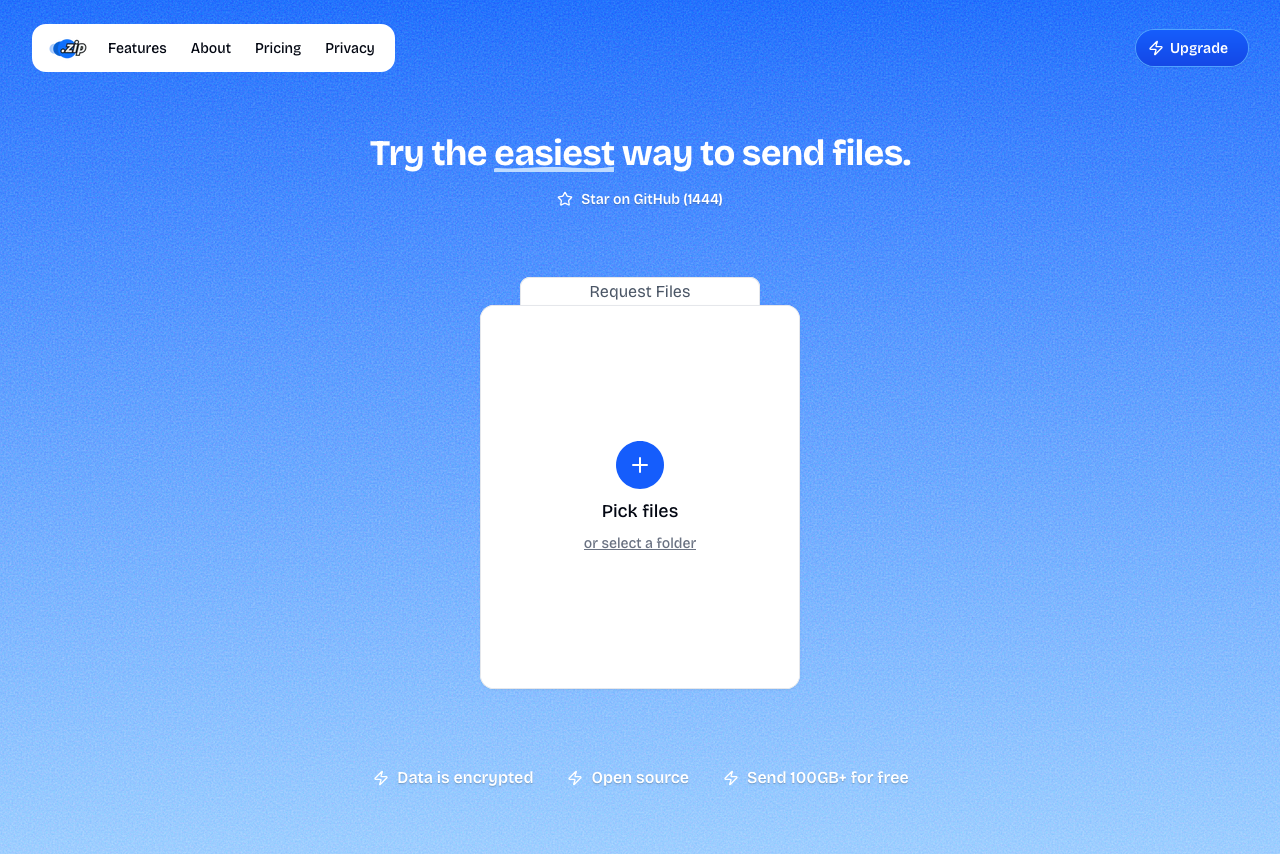 Transfer.zip's Quick Transfer page.
Keep the tab or browser open until the recipient finishes downloading. Both devices need to be online at the same time, on any network: Wi-Fi on your side and mobile data on theirs works fine.
Method 4: Shrink the Video to Fit
If the recipient just needs to see the clip and quality is negotiable, compressing it below the media limits also works. A 720p re-encode makes most phone videos small enough to send comfortably.
FAQ
Why do my WhatsApp videos look blurry? Videos sent as media are re-encoded at roughly 480p (720p with the HD toggle) to save data. Send the video as a document instead, and it arrives in original quality.
What's the maximum file size on WhatsApp? 2 GB per file, sent as a document. There's no paid tier that raises it. Bigger files need a link.
How do I send a 5 GB video on WhatsApp? Paste a Transfer.zip link in the chat. Quick Transfer has no size limit and streams the file directly to the recipient's browser.
Does sending as a document work for photos too? Yes. A photo sent as a document keeps its full resolution and metadata, which is exactly what you want for printing or editing.
Is a transfer link as private as WhatsApp? With Transfer.zip, yes in the way that matters: files are end-to-end encrypted, and the decryption key stays in the link fragment, which never reaches any server. Only people with the link can open the transfer.
Bottom line: WhatsApp compresses what you send as media and stops at 2 GB either way. Send files as documents for full quality, and for anything bigger, Transfer.zip gets a link into the chat with no size limit.