
Discord File Size Limits (2026)
Discord's standard free upload limit is 20 MB per file, including in DMs and group chats. Boosted servers can allow larger uploads, as covered below.
| Plan | Upload Limit | Price |
|---|---|---|
| Free | 20 MB | $0 |
| Nitro Basic | 50 MB | $2.99/mo |
| Nitro | Up to 1 GB | $9.99/mo |
Update (September 29, 2026): Discord's File Attachments FAQ, updated today, now lists 20 MB for free accounts, 50 MB for Nitro Basic, and up to 1 GB for Nitro. Discord dates the free limit increase to August 2026.
Discord checks file size before compression on desktop and mobile, and some users may get higher experimental limits.
To send larger files without buying Nitro, share a link or use a server that's already boosted. Both are covered below.
Method 1: Paste a Transfer Link (Recommended)
The cleanest way around the limit is to not upload to Discord at all and share a link instead. There's no size cap, the recipient doesn't have to install anything, and the link previews right inside the chat.
Transfer.zip is the fastest option for this:
- Open Transfer.zip and pick Quick Transfer.
- Select your files (or a whole folder), any size.
- Copy the link and paste it into Discord.
Files stream in real time, end-to-end encrypted, so there's no upload wait and nothing is stored on a server. Keep the tab open until your friend finishes downloading, no account required.
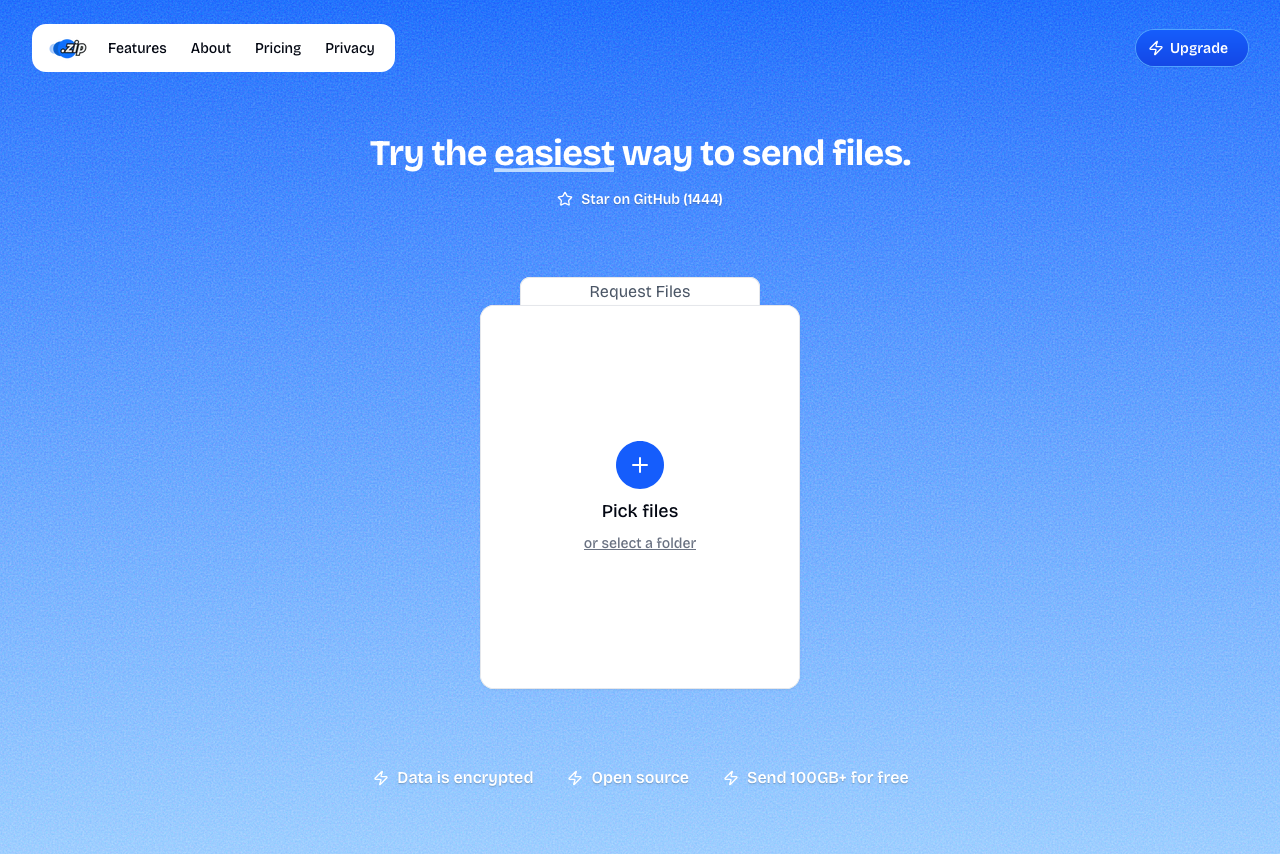 Transfer.zip's Quick Transfer page.
A transfer link unfurls into a clickable preview in Discord, and your recipient downloads straight from their browser without installing or signing up for anything.
Other services that work the same way
All free, all no-account:
- SwissTransfer - up to 50 GB, files kept 30 days, optional password. Handy when the recipient is offline and grabs it later.
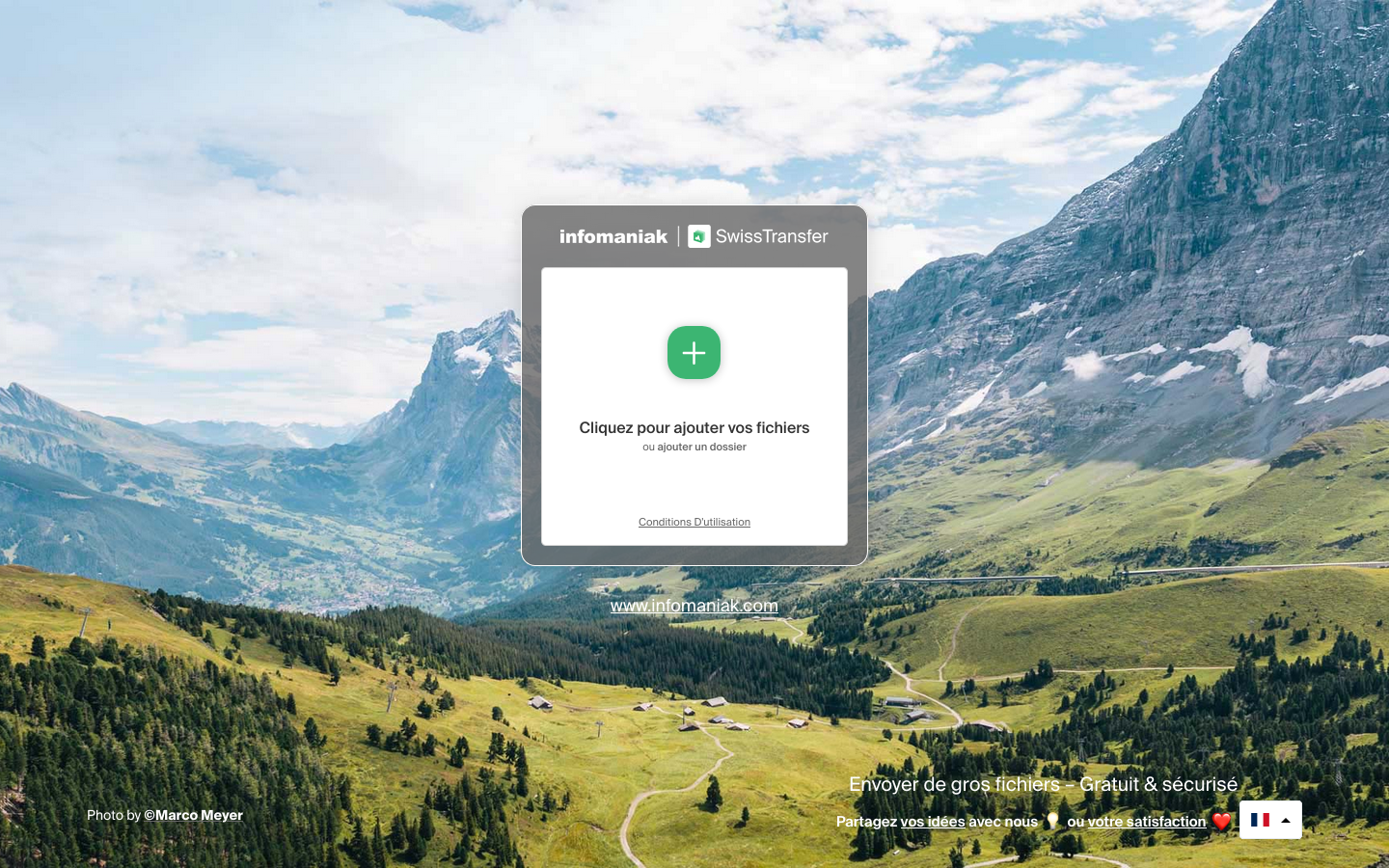 SwissTransfer's upload page.
- Send Anywhere - direct device-to-device transfers with a 6-digit key or a download link. A long-time favorite in gaming and Discord circles.
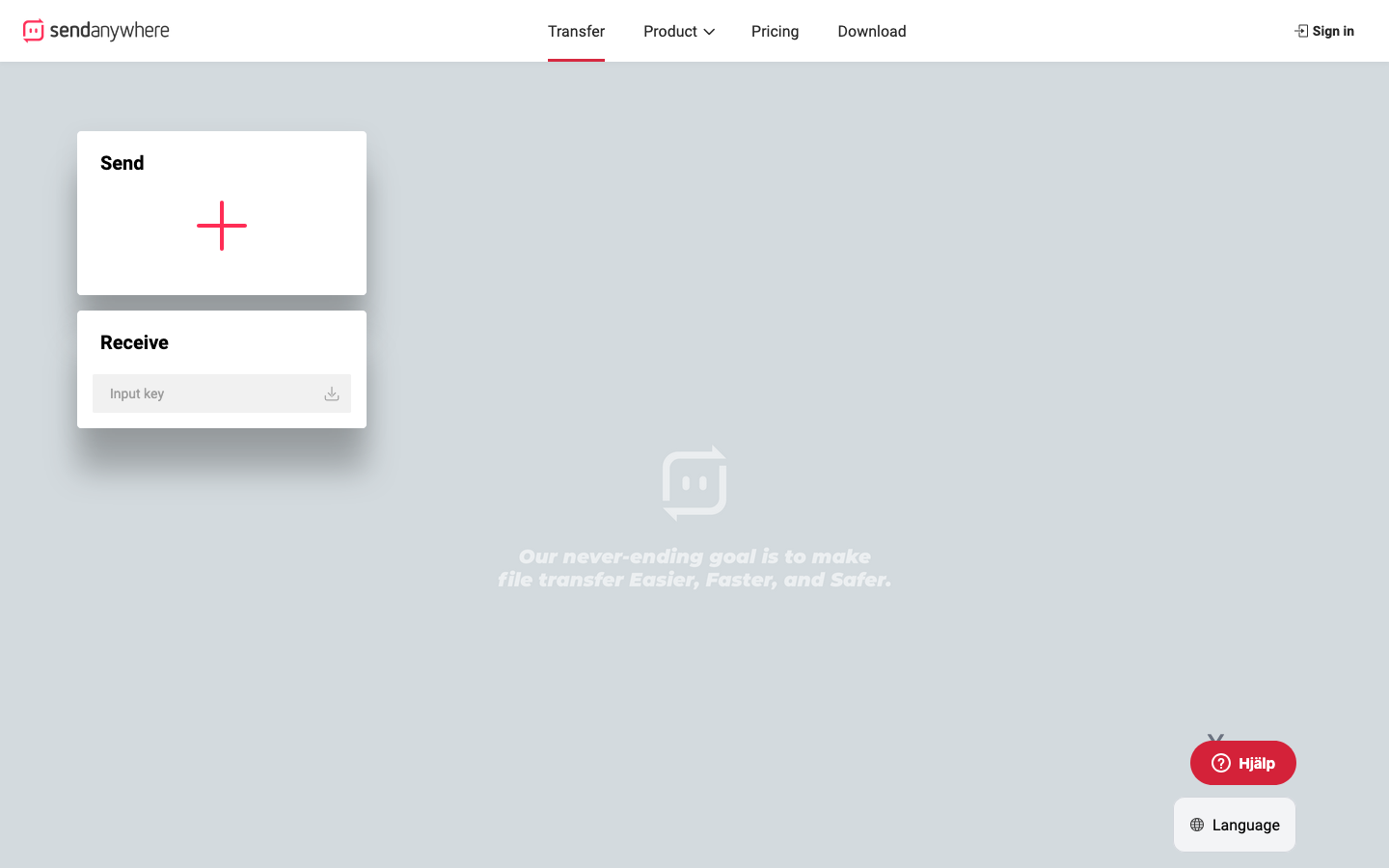 Send Anywhere's transfer page.
- WeTransfer - up to 3 GB, 3-day expiry, capped at 10 transfers/month on the free tier, account required.
Already on Google Drive, Dropbox, or OneDrive?
Upload there, set sharing to "Anyone with the link," and paste it in Discord. Best when you want the file to stick around long-term, just know it eats your storage quota.
Method 2: Boost the Server to Raise the Limit (No Nitro)
Server Boosts let members without Nitro upload larger files inside that server:
- Level 2 (7 boosts) → 50 MB per file
- Level 3 (14 boosts) → 100 MB per file
Some servers can also enable an experimental Larger File Uploads perk for 5 boosts, allowing 250 MB files. Availability is limited to selected servers.
If you're already in a community boosted to Level 2 or 3, you can drop bigger files there right now, no Nitro needed.
The raised limit only applies inside that boosted server, not in DMs. And boosts cost money, so buying them just to send one file isn't worth it: a single Nitro subscription is cheaper than the boosts needed to reach 50 MB. Use this when a server is already boosted.
Method 3: Split the File into Parts (Upload Straight to Discord)
If you need the file uploaded in Discord, not as a link, split it into chunks under 20 MB.
Install 7-Zip, right-click your file → Add to archive → set Split to volumes to 19M. You'll get file.7z.001, .002, and so on. Upload each part to Discord.
To rebuild it, the recipient downloads every part into one folder and extracts .001 with 7-Zip.
All parts must sit in the same folder to extract. If even one is missing, the archive won't open, so make sure your recipient grabs every piece before extracting.
WinRAR works the same way: right-click → Add to archive → Split to volumes, 19M.
Method 4: Compress or Shrink the File
Zipping only helps with text and documents, where it can shave 70-90% off. Videos, photos, MP3s, and PDFs are already compressed, so zipping barely changes them. Skip it for those.
- Windows: right-click → Send to → Compressed (zipped) folder
- Mac: right-click → Compress "[filename]"
For video, the win is re-encoding, not zipping. Try re-encoding a clip at 720p with HandBrake or Vert.sh, then check that the exported file is under 20 MB before attaching it.
The final size depends on duration and bitrate. Compress the video yourself before attaching it; Discord's own compression won't get an oversized source file past the upload check.
FAQ
How do I send a video larger than 20 MB on Discord? Either re-encode it to under 20 MB (Method 4), or, to keep full quality, upload it to Transfer.zip and paste the link. A link has no size cap.
Does boosting a server remove the file limit? It raises it, doesn't remove it: Level 2 allows 50 MB and Level 3 allows 100 MB for members without Nitro. Some servers also have an experimental 250 MB perk. These limits only apply inside that server. For anything bigger, share a link.
What's the largest file I can send on Discord for free? Normally 20 MB per file, or 100 MB in a Level 3 boosted server without buying Nitro yourself. Selected servers with the experimental Larger File Uploads perk allow 250 MB. As a link, there's no limit. Transfer.zip handles files of any size.
Can I get banned for sharing external links? No. Discord allows external links, and posting a download link for an oversized file is completely normal.
Can I send large files in Discord DMs? Free accounts have a standard 20 MB limit in DMs and group chats. Boosts only help inside a server, so for DMs use a link, a split archive, or a compressed file.
Is Nitro worth it just for uploads? If you regularly send 50 MB to 1 GB files and want the other perks, maybe. For the occasional big file, a free link is enough, and Nitro still caps at 1 GB, so anything larger needs a link anyway.
Bottom line: You don't need Nitro to share large files on Discord. For anything over 20 MB, paste a link. Transfer.zip gives you one instantly and for free, with no size limit.
Related guides: