
First, why are phone videos so big?
Modern phones shoot 4K by default, and 4K runs to hundreds of megabytes per minute. Compression means re-encoding at a lower resolution or bitrate: 4K down to 1080p or 720p cuts the size by 70-90%, and for watching on another phone, the difference is barely visible.
One thing that doesn't work: zipping. Files by Google can zip videos, but video is already compressed, so the zip comes out nearly the same size. Actual shrinking requires re-encoding.
Method 1: Samsung Gallery (No App Needed, Samsung Only)
Galaxy phones that shoot 4K can resize video right in the Gallery app:
- Open the video in Gallery and tap Edit (the pencil).
- Tap the three-dot menu → Size and format.
- Pick a lower resolution (FHD or HD) and save.
Samsung notes that big videos take a few minutes to save after resizing. The feature lives on S20-era models and newer; if your Gallery lacks the menu, use Method 2.
Method 2: CapCut (Any Android, Free)
CapCut doubles as a perfectly good compressor:
- Import the video, make no edits (or trim, the biggest size win of all).
- Tap Export and lower the resolution (720p for chat sharing) and the bitrate slider.
- Export and share.
The watermark everyone fears comes from a default ending clip that free users can simply select and delete on the timeline before exporting. Some templates force branding, but a plain import-and-export doesn't.
Method 3: A Dedicated Compressor App
The Play Store's compressor apps do one-tap resizing with batch support. The trade-off is uniform: the popular free ones are ad-supported with paid upgrades. Two with a long track record:
- Panda Video Compressor - straightforward one-tap presets, 10M+ installs.
- YouCut - trimmer and compressor in one, exports without a watermark, 100M+ installs.
Expect ads between actions, and check the output before deleting your original.
Google Photos can't export a single video at reduced quality on demand. Its "Storage saver" setting compresses the cloud backup (video above 1080p is resized to 1080p), which affects your backups, not a file you're trying to share right now.
Method 4: Don't Compress, Send the Original
If the only reason you're compressing is that the video is "too big to send," there's a way that skips both the quality loss and the wait for a phone processor to re-encode ten minutes of 4K:
- Open Transfer.zip in Chrome on the phone and pick Quick Transfer.
- Select the video from your gallery, any size.
- Send the link, or have the other device type the 6-digit code.
The original streams directly to the recipient, end-to-end encrypted, full quality. Keep the browser tab in the foreground until it finishes; Android likes to pause background tabs.
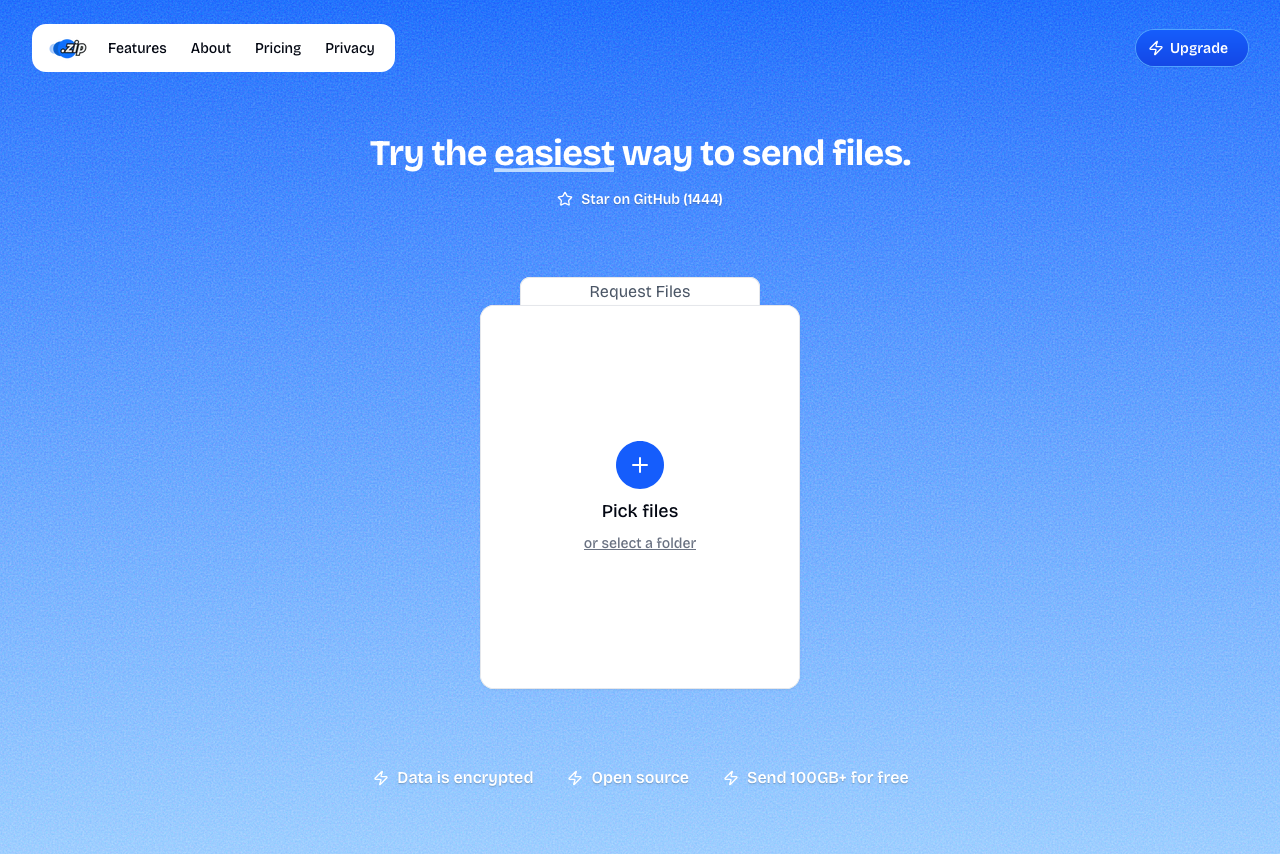 Transfer.zip's Quick Transfer page.
FAQ
How do I make a video smaller on Android without an app? On Samsung, the Gallery editor's "Size and format" option resizes natively. Other Androids don't ship a system compressor, so it's CapCut, a compressor app, or sending a link instead.
What resolution should I compress to? 720p for anything watched on a phone, 1080p if it might end up on a TV or monitor. Below 540p, text and detail start smearing.
Why is my compressed video still huge? Length. Resolution changes help, but a 20-minute clip stays big at any watchable quality. Trim to the part that matters, or send the full clip as a link.
Does WhatsApp compress videos anyway? Sent as media, yes, heavily. So compressing before WhatsApp just degrades it twice. Either send it as a document in WhatsApp (up to 2 GB) or use a transfer link, and let one tool handle size. Details: send large files on WhatsApp.
Bottom line: Samsung Gallery or CapCut shrink a video on-device in a couple of minutes. But when the goal is just getting the video to someone, Transfer.zip sends the original from your phone's browser with no size limit, and nobody watches your footage through a compression haze.
Related guides: