
Gmail's actual limits
- Sending: 25 MB total per message, attachments included.
- Receiving: 50 MB. Even if another provider lets someone send 40 MB, Gmail will accept it; over 50 MB it bounces.
- The hidden one: email encoding inflates attachments by roughly a third in transit, so a 20 MB file can bounce against a 25 MB cap. Details in how to send large files by email.
Attach a file over the limit and Gmail doesn't refuse: it uploads the file to your Google Drive and sends a link instead.
What the automatic Drive link really does
Convenient on the surface, with three catches underneath:
- It spends your storage. The file sits in Drive permanently and counts against the 15 GB you share across Gmail, Drive, and Google Photos. A few video sends later, "Storage full" warnings start hitting your email.
- Permission errors. Gmail asks how to share the Drive file. Pick the wrong option and your recipient hits "You need access," sends a request, and waits for you to notice it.
- The link lives forever. Unless you remember to delete the file or change sharing later, that download link works indefinitely for anyone who has it.
For occasional use between people who both live in Google's world, it's fine. Just do the cleanup.
Method 1: Use the Drive Flow Deliberately
If you're staying inside Google, drive it yourself rather than letting the attachment fallback decide:
- Upload the file to Google Drive first.
- Right-click → Share → set General access to "Anyone with the link."
- Copy the link into your Gmail message.
The "anyone with the link" setting is what prevents the access-request dance. Remember to remove the file from Drive when it's served its purpose, both for quota and for hygiene.
Method 2: Send a Transfer Link (No Quota, No Permissions)
A transfer service keeps your mailbox and your Drive out of it:
- Open Transfer.zip and pick Quick Transfer, no account needed.
- Select files or a whole folder, any size.
- Paste the link into your Gmail message.
Quick Transfer streams the files directly to your recipient, end-to-end encrypted, while both of you are online. For recipients who'll download later, the 7-day free trial covers stored transfers up to 1 TB that expire on a schedule you pick, up to a year, with view and download tracking so you know the attachment landed.
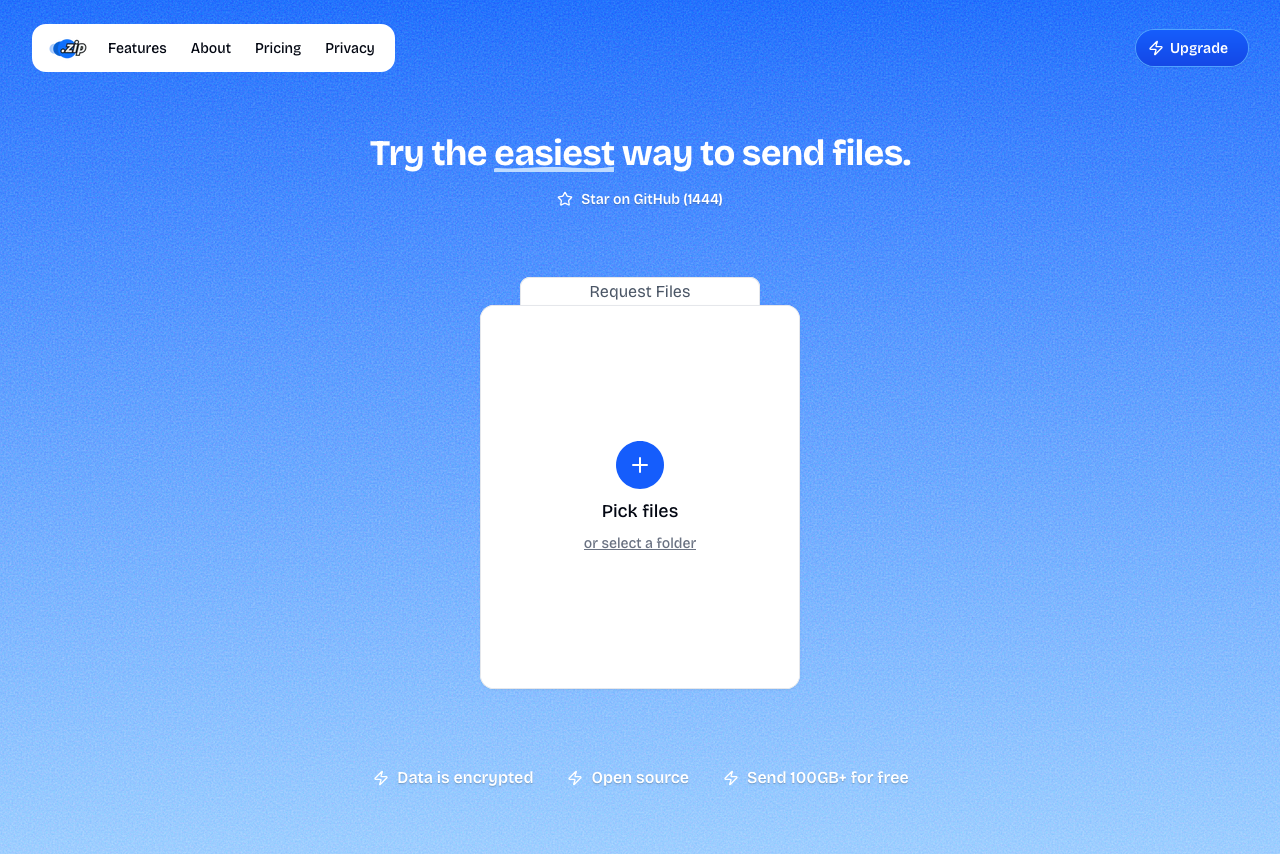 Transfer.zip's Quick Transfer page.
Unlike a Drive link, a transfer link expires by design. No forgotten files in your quota, no eternal download links in old threads.
Method 3: Compress It Under the Limit
For files just over the line, compression can duck the 25 MB cap: zipping helps a lot for documents (70-90% smaller) and almost nothing for photos, videos, or PDFs, which are already compressed. Videos respond to re-encoding instead: how to compress a video for email.
FAQ
What's the largest file I can attach in Gmail? 25 MB per message including all attachments, and effectively less because encoding inflates the payload. Anything larger becomes a Google Drive link automatically.
Why did my 20 MB attachment fail? Encoding overhead. Attachments grow by roughly 35% in transit, so 20 MB becomes about 27 MB, over the cap. Keep raw attachments under about 18 MB, or send a link.
Do Google Drive links from Gmail count against my storage? Yes, against the sender's 15 GB shared quota, for as long as the file stays in Drive.
Can Google Workspace accounts send bigger attachments? Mostly no: the 25 MB send limit applies there too. As of February 2026, Workspace Enterprise Plus specifically got 50 MB sending, still far too small for real file delivery.
How do I email a video that's several GB? Don't attach it, link it. A Transfer.zip link handles any size, and the recipient just clicks and downloads, no Google account, no access requests.
Bottom line: Gmail's 25 MB cap hasn't moved in years, and the Drive fallback trades one problem for three smaller ones. For anything sizable, put a Transfer.zip link in the email: your quota stays untouched, nobody has to request access, and nothing lingers in old threads.
Related guides: