
Telegram's file limits
Telegram is the most generous of the big messengers, but there are still ceilings:
| Plan | Max per file | Price |
|---|---|---|
| Free | 2 GB | $0 |
| Premium | 4 GB | ~$4.99/mo |
Two details worth knowing:
- The limit is per file, and you can send an unlimited number of files. A 10 GB folder can travel as five 2 GB archives, clumsy but possible.
- A free user can download a 4 GB file that a Premium user sent. Only uploading past 2 GB requires the subscription.
Method 1: Send as a File to Skip Compression
Like every messenger, Telegram compresses photos and videos sent through the media picker. The uncompressed path:
- Tap the attach icon in the chat.
- Choose File instead of Gallery.
- Pick your photo, video, or document.
Sent this way, the file arrives exactly as it left, original resolution, no re-encoding, up to the 2 GB (or 4 GB) cap.
On Android, the attach menu also offers "Gallery" inside the File picker, which lets you grab photos and videos as files without leaving the chat. On iPhone, save the video to the Files app first if it only exists in Photos.
Method 2: Telegram Premium (2 GB → 4 GB)
If you regularly send files in the 2-4 GB range to other Telegram users, Premium's bigger upload cap alone might justify the roughly $4.99/month. You also get faster download speeds on large files.
Past 4 GB, though, Premium can't help you, and there's no higher tier. That's when you switch to a link.
Method 3: Bigger than 4 GB? Send a Link
For raw footage, disk images, or whole project folders, skip the cap entirely:
- Open Transfer.zip and pick Quick Transfer.
- Select the files or folder, any size, no account.
- Paste the link into your Telegram chat.
The files stream directly from your device to the recipient's browser, end-to-end encrypted, nothing stored on any server. Handy side effect: the recipient doesn't need Telegram at all, so the same link works for the one contact who insists on email.
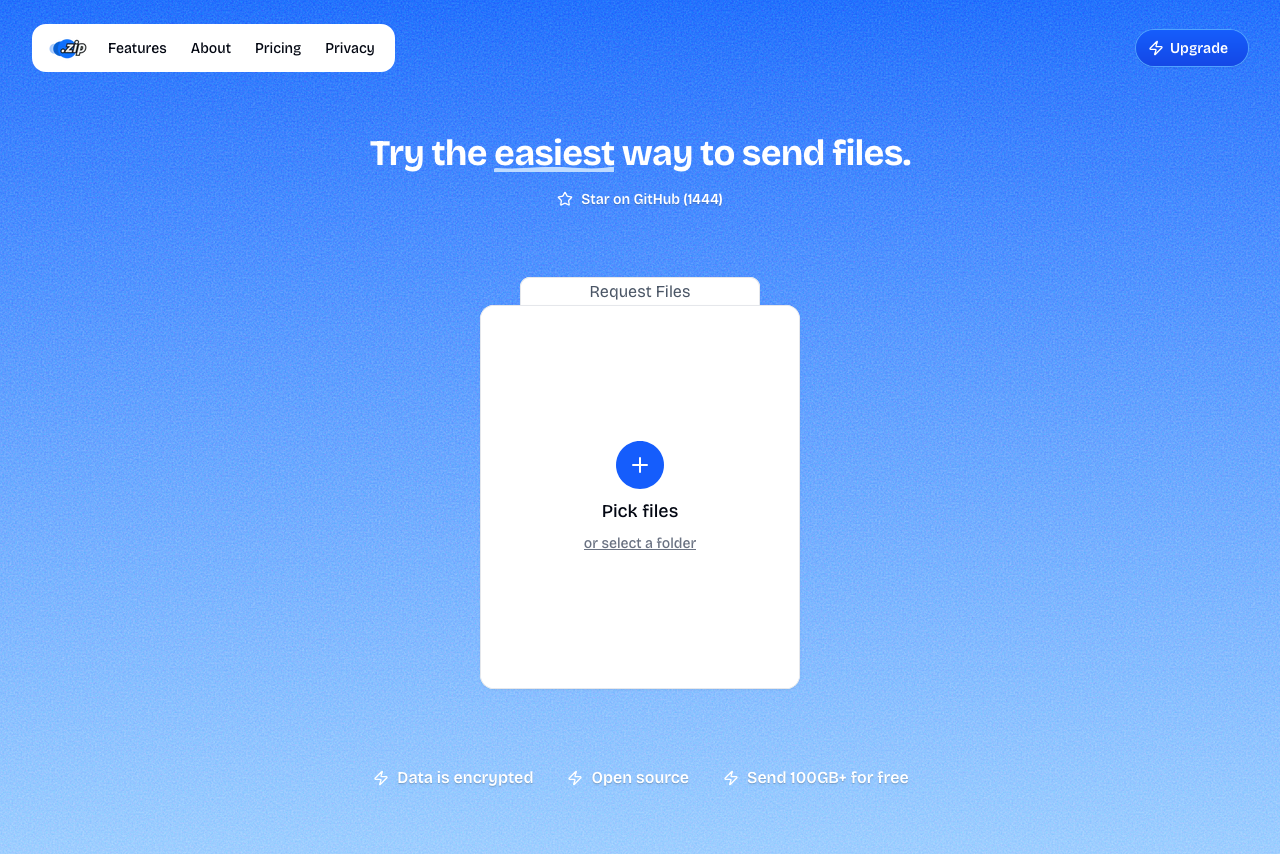 Transfer.zip's Quick Transfer page.
Quick Transfer is live: both devices stay online until the download completes. If the recipient needs to fetch the file later, the 7-day free trial covers stored transfers up to 1 TB.
Method 4: Split the File into 2 GB Parts
If the file must live inside Telegram (say, for a channel's archive), split it with 7-Zip: right-click → Add to archive → Split to volumes → 1900M. Upload each part as a file; the recipient downloads all parts and extracts the first one.
It works, but a 20 GB file becomes eleven parts and one missing part breaks the archive. Use it when a link genuinely won't do.
FAQ
Does Telegram compress files? Only media sent through the photo/video picker. Anything sent with File transfers uncompressed at original quality.
What's the largest file I can send on Telegram? 2 GB free, 4 GB with Premium. Beyond that, Telegram has no option at any price; use a transfer link.
Is Telegram Premium worth it just for file size? If your files fall in the 2-4 GB range and your recipients live on Telegram, maybe. If your files are bigger or your recipients are elsewhere, a free transfer link covers both without the subscription.
Can free users receive 4 GB files? Yes. Any Telegram user can download files up to 4 GB; only sending files over 2 GB requires Premium.
Are Telegram file transfers private? Regular chats (including files) are encrypted client-server, not end-to-end; only Secret Chats are E2E, and those don't support all file features. If that distinction matters for your files, an end-to-end encrypted transfer link is the safer route.
Bottom line: Telegram handles files up to 2 GB better than any other messenger, and Premium stretches that to 4 GB. Past that point, paste a Transfer.zip link and forget limits exist.
Related guides: