
Why put a password on a file?
A share link on its own is a single point of failure. Links get forwarded, sit in inbox threads for years, and occasionally land in front of the wrong person. A password splits the secret in two: the link alone is useless without the second half you sent another way.
Three ways to do it, from most universal to most convenient.
Method 1: Encrypted Archive (Works with Any Service)
This is the classic approach and still the strongest: the password protection lives in the file itself, so it doesn't matter which service, email, or chat app carries it.
On Windows, with 7-Zip (free):
- Select your files, right-click → 7-Zip → Add to archive.
- Under Encryption, enter a strong password and pick AES-256.
- Keep the
.7zformat and tick Encrypt file names, so the contents list is hidden too. - Send the archive however you like.
On Mac: Keka (free) creates password-protected 7z and zip archives the same way. The built-in "Compress" option in Finder does not support passwords.
Send the password through a different channel than the file. Link by email, password by text or a phone call. If both travel together, the password protects nothing.
Plain zip encryption (the old ZipCrypto format some tools default to) is weak and crackable. Always pick AES-256 explicitly, and prefer 7z when you can.
The one downside: your recipient needs 7-Zip, Keka, or another archive tool that can open encrypted archives. Most can, but a heads-up saves a confused reply.
Method 2: A Transfer Service with Built-in Link Passwords
Some services let you set a password on the download page itself, so the recipient just types it in the browser:
- SwissTransfer - free, up to 50 GB, optional password on every transfer, 30-day retention.
- TransferNow - free tier includes password protection, 5 GB limit.
This is the most recipient-friendly option, with one caveat worth understanding: the service itself can still access the files. The password gates the download page, it doesn't encrypt the data end-to-end. For most files that's fine. For genuinely sensitive ones, use Method 1 or 3.
Method 3: End-to-End Encryption (the Link Is the Key)
A password exists to keep the service and link-snoopers out of your files. End-to-end encryption solves the same problem more directly.
With Transfer.zip Quick Transfer, files are encrypted in your browser with AES-256 before they leave your device. The decryption key travels in the part of the link after the #, which browsers never send to any server. Nothing is stored anywhere: files stream straight to your recipient while both tabs are open.
- Open Transfer.zip and pick Quick Transfer.
- Select files or a folder, any size, no account.
- Share the link over a channel only your recipient can read.
The security model is the same as a good password's: possession of the link is possession of the key. Treat the link like you'd treat the password, and you get stronger protection with one less thing to type.
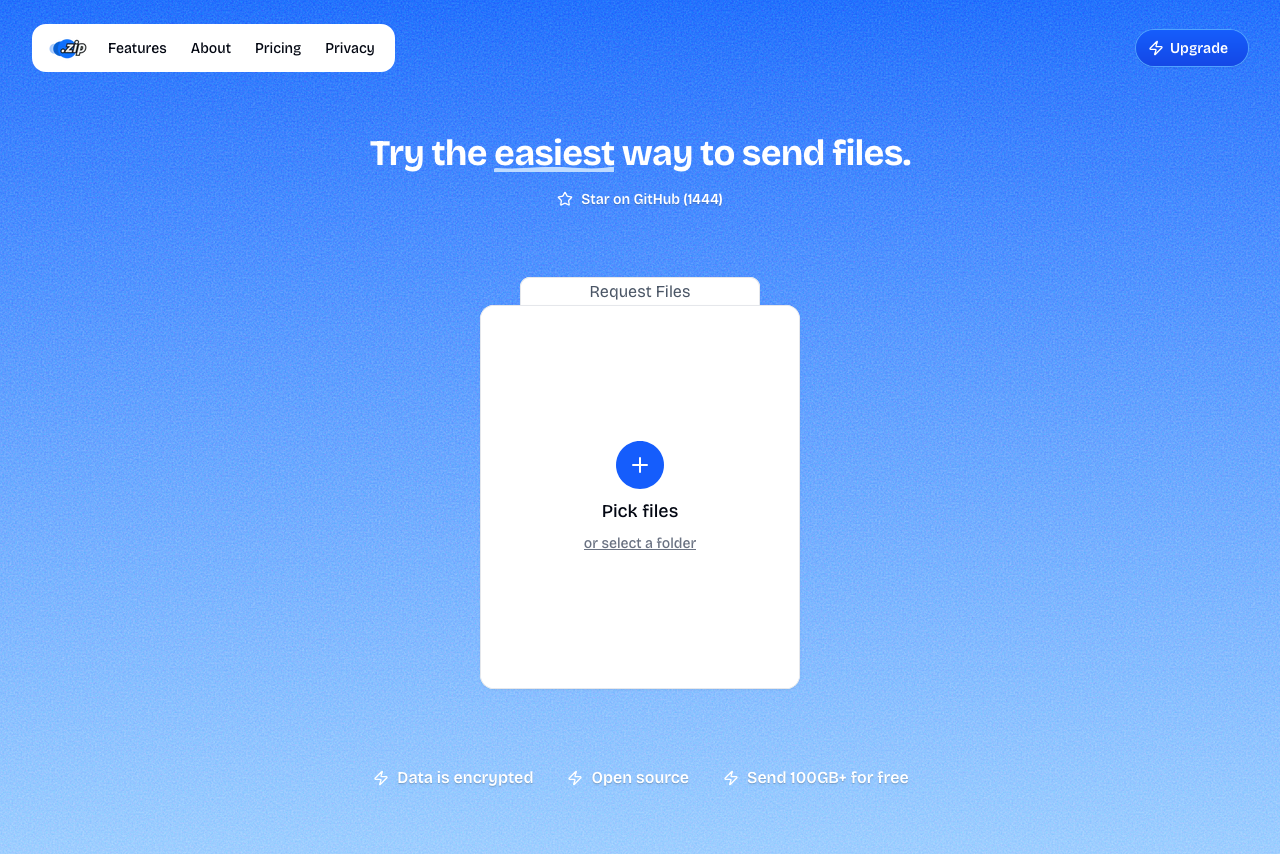 Transfer.zip's Quick Transfer page.
Belt and suspenders: put files in an encrypted 7-Zip archive and send it through an end-to-end encrypted transfer. The server sees ciphertext of ciphertext.
Picking a strong password
Whatever method you choose, the password is the weakest link:
- Length beats complexity: four random words beat
P@ssw0rd!. - Never reuse a password that also unlocks an account somewhere.
- Say it over the phone or send it in a disappearing message if the files matter.
FAQ
Can I password-protect a zip file without installing anything? On Windows, no: the built-in "Compressed (zipped) folder" feature has no password option, so you need 7-Zip or similar. On Mac, Finder's Compress has no password option either; Keka fills the gap.
Is a password-protected zip safe to send by email? The attachment itself is, as long as you used AES-256 and a strong password. Just don't put the password in the same email, and remember some mail providers block certain attachment types.
What if my recipient can't open a 7z file?
Point them to 7-Zip (Windows) or Keka (Mac), both free. Or create an AES-encrypted .zip instead of .7z: slightly less protection for the file list, but opens with more tools.
Do I even need a password with an end-to-end encrypted service? The link already contains the key, so a separate password is mostly redundant. What matters is sending the link over a private channel, exactly as you would a password.
Bottom line: Password-protect the archive when you must use a specific service, use a built-in link password for convenience, or send it end-to-end encrypted and make the link itself the key. Transfer.zip handles the last one for free, at any size.
Related guides: